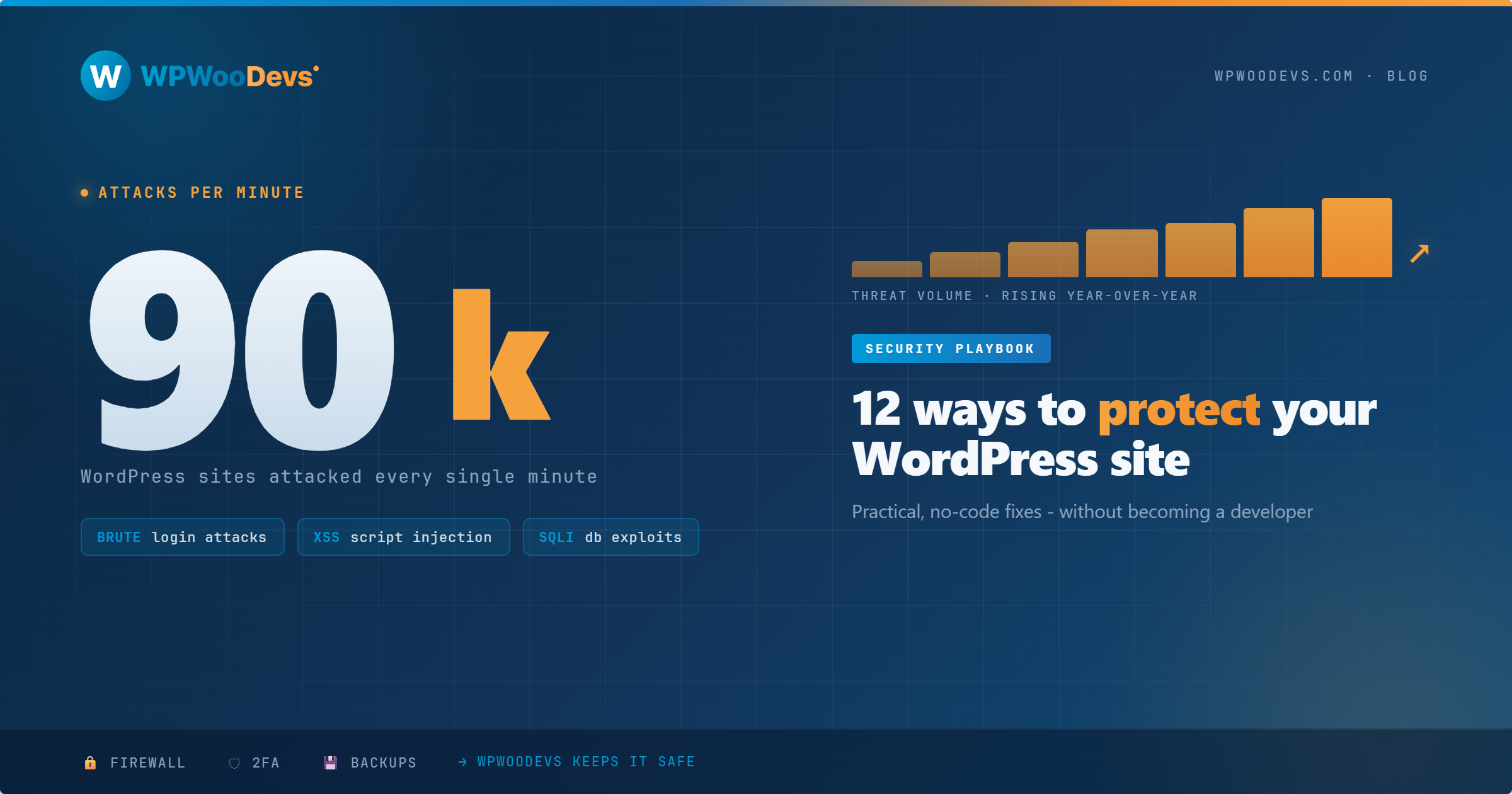
WordPress Security in 2026: 12 Practical Ways to Protect Your Website (Without Becoming a Developer)
WordPress powers roughly 43% of all websites on the internet. That's an extraordinary reach — and it's exactly why hackers target it so relentlessly. Not because WordPress is uniquely insecure, but because attacking WordPress at scale is efficient. If you write an automated script that exploits a vulnerability in a popular plugin, you can potentially hit thousands of sites at once.
Here's the part that often gets buried in alarming statistics: the vast majority of compromised WordPress sites are not hacked through some sophisticated, targeted attack. They're compromised because of outdated software, weak passwords, or a misconfigured plugin that's been vulnerable for months. These are problems with practical, non-technical solutions.
This guide covers twelve security measures that any WordPress site owner can implement — most of them free, all of them effective. You don't need to be a developer. You just need to be consistent.
Understanding the Threat Landscape in 2026
Before jumping into fixes, it's worth knowing what you're actually defending against.
Plugins account for the majority of WordPress vulnerabilities — over 90% according to recent research. Themes account for a smaller but still significant share. WordPress core itself, when kept up to date, is relatively well-hardened. This tells you something important: most security risk on your site comes from the third-party code you install, not WordPress itself.
Automated scanning bots probe millions of WordPress sites daily, looking for known vulnerabilities in specific plugin versions, common weak passwords, and unprotected login pages. These aren't human hackers sitting at a keyboard targeting you personally — they're scripts running on servers, and they don't care whether you're a Fortune 500 or a solo consultant with a blog. If your site has a known vulnerability, you're in the list.
The other major threat is compromised credentials. Credential stuffing — using lists of username/password combinations leaked from other breaches — is responsible for a significant proportion of WordPress account takeovers. If you reuse passwords across services, a breach on a completely unrelated site can give someone access to your WordPress admin.
1. Keep Everything Updated — Immediately
This bears repeating because it's genuinely the single highest-impact security action you can take: keep WordPress core, every plugin, and every theme updated.
When a security vulnerability is discovered in a plugin, a patch is typically released quickly. But that patch announcement is also a public roadmap for hackers — now they know exactly which sites running the old version are vulnerable. The window between patch release and widespread exploitation is often hours, not days.
Turn on automatic background updates for minor WordPress releases. For plugins and themes, either update them manually as a weekly routine or enable auto-updates for plugins you trust (which is most of the major ones). If a plugin hasn't been updated in over a year, seriously consider replacing it with an actively maintained alternative.
Practical tip: In your WordPress dashboard, go to Dashboard → Updates and make it part of your Monday morning routine if you're managing updates manually.
2. Audit and Remove Unused Plugins and Themes
Every plugin and theme installed on your site — even inactive ones — is potential attack surface. Inactive plugins can still have exploitable files on your server. Themes you're not using serve no purpose but represent risk.
Go through your installed plugins and ask: am I actually using this? Is it actively maintained? If the answer to either question is no, delete it. Not just deactivate — delete. The same applies to themes. WordPress installs default themes by default; if you're running a custom theme, delete the ones you don't use.
This audit should happen at least every six months. Your plugin list tends to grow over time as you test things and forget to clean up.
3. Use Strong, Unique Passwords and a Password Manager
A weak password is a door with a welcome mat. Brute force attacks — where automated tools try thousands of username/password combinations per minute — are among the most common attack vectors on WordPress admin accounts.
Your WordPress admin password should be at least 16 characters, include a mix of uppercase letters, lowercase letters, numbers, and symbols, and be unique to WordPress. That last part is critical. If you use the same password you use for email or online shopping, any breach on those platforms puts your WordPress site at risk.
A password manager (1Password, Bitwarden, and Dashlane are all solid options) makes this effortless. It generates and stores complex unique passwords for every service, so you only need to remember one master password. There's no good reason not to use one in 2026.
Also, change the default admin username. "Admin" is the most commonly guessed username in brute force attacks. If your main account is still named "admin," create a new administrator account with a different name, assign all content to it, and delete the old one.
4. Enable Two-Factor Authentication (2FA)
Even a strong, unique password can end up in a breach. Two-factor authentication means that even if someone gets your password, they still can't log in without access to your phone or authentication app.
Implementing 2FA on WordPress is straightforward with plugins like:
WP 2FA — a clean, beginner-friendly plugin with multiple authentication methods
Wordfence Security — includes 2FA as part of its security suite
Google Authenticator (miniOrange) — well-established and reliable
Enable 2FA for all administrator and editor accounts at minimum. If you have a WooCommerce store with customer accounts, consider offering it as an option there too, particularly if customers store payment methods or personal data.
5. Install a Security Plugin with a Firewall
A Web Application Firewall (WAF) sits between your website and incoming traffic, filtering out malicious requests before they reach WordPress. Think of it as a security guard checking credentials at the door rather than letting everyone into the building first.
The leading security plugins for WordPress in 2026 are:
Wordfence Security — the most widely used WordPress security plugin, with a free tier that includes a firewall, malware scanner, and brute force protection. The premium version adds real-time threat intelligence and faster rule updates.
Sucuri Security — offers a server-side firewall (DNS-based) in its premium version, which is more robust than a plugin-level firewall, plus malware scanning and hack cleanup services.
iThemes Security Pro — strong on access control, brute force protection, and user activity logging.
For most sites, Wordfence free is a meaningful improvement over nothing. If you're running a WooCommerce store or a site handling sensitive customer data, the premium tier of either Wordfence or Sucuri is worth the cost.
6. Limit Login Attempts
By default, WordPress allows unlimited login attempts. This makes brute force attacks straightforward — an automated script can try thousands of passwords without being blocked.
Installing a plugin like Limit Login Attempts Reloaded or using the login protection built into Wordfence allows you to lock out IP addresses after a specified number of failed attempts. Three to five attempts before a temporary lockout is a reasonable threshold.
This doesn't stop all brute force attacks — sophisticated ones will rotate IP addresses — but it significantly raises the cost of the attack and stops the majority of automated probes.
7. Change the Default WordPress Login URL
WordPress login pages live at /wp-login.php or /wp-admin/ by default. Every automated attack script knows this. Moving your login page to a custom URL like /site-access/ or /manage/ won't stop a determined attacker, but it eliminates the vast majority of automated probes that never get past the login page check.
Plugins like WPS Hide Login handle this with a single setting and no code changes required.
One important note: if you change your login URL, write it down somewhere safe. If you forget it, you can still access your site via SFTP/FTP or your hosting control panel, but it's an annoying situation to be in.
8. Force HTTPS Across Your Entire Site
If your site is still serving any pages over HTTP rather than HTTPS, fix this immediately. HTTPS encrypts data in transit between your server and visitors, preventing interception of submitted forms, passwords, and session cookies.
Getting an SSL certificate is free through Let's Encrypt, and most reputable hosting providers install and auto-renew it for you. If you're on a host that doesn't support this, it's another reason to consider a move to a better provider.
After enabling SSL, make sure you've set up proper redirects so all HTTP traffic goes to HTTPS, and update your WordPress URL settings in Settings → General to use https://. The Really Simple SSL plugin can handle most of this automatically if you're not comfortable doing it manually.
9. Back Up Your Site Regularly (and Test Your Restores)
Backups aren't strictly a security measure — but they are your last line of defense when everything else fails. Whether the threat is a hacked site, a botched update, or accidental deletion, a recent backup means the difference between a few hours of recovery and a catastrophic loss.
The backup setup that makes sense for most WordPress sites:
Daily backups stored off-site (not on the same server)
At least two weeks of history so you can restore to before an issue was introduced
Both the database and files backed up (many people forget the uploads folder)
UpdraftPlus is the most popular free backup plugin, with options to store backups in Dropbox, Google Drive, Amazon S3, or remote FTP. BlogVault and ManageWP offer managed backup services with staging environments, which is worth considering if you're managing multiple sites.
The part most people skip: actually test a restore. Schedule a restore test every few months on a staging site. If your backups are broken or incomplete, you want to discover that before the disaster, not during it.
10. Harden Your WordPress Configuration
A few server-level configurations that improve security meaningfully, and that can be handled without deep technical knowledge:
Disable XML-RPC unless you specifically need it. XML-RPC is a remote access protocol that is commonly exploited for brute force attacks and DDoS amplification. Most modern WordPress setups don't need it. Your security plugin may have an option to disable it; alternatively, a line in your .htaccess file handles it.
Protect your wp-config.php file. This file contains your database credentials and security keys. Restricting web access to it via your .htaccess prevents direct access from the browser.
Disable file editing in the dashboard. The built-in WordPress theme and plugin editor allows anyone with admin access to edit PHP files directly in the browser — which is convenient but dangerous. Add define('DISALLOW_FILE_EDIT', true); to your wp-config.php to disable it.
11. Use a Reputable, Security-Conscious Hosting Provider
Your hosting environment is the foundation everything else sits on. A security plugin can't compensate for a shared hosting environment where another site on the same server is compromised and attackers gain access to your files.
Quality managed WordPress hosts implement server-level firewall rules, malware scanning, automatic isolation between accounts, and intrusion detection systems. They also stay current on PHP versions and server software. This isn't just marketing copy — it's a measurable difference in your attack surface.
If your current host doesn't offer at minimum: PHP 8.x support, malware scanning, and isolated hosting accounts, it's worth evaluating alternatives.
12. Monitor Your Site and Set Up Alerts
Security is not a fire-and-forget process. New vulnerabilities are discovered regularly, and you want to know about issues affecting your site as quickly as possible.
Set up monitoring for:
Uptime — if your site goes down unexpectedly, that's sometimes the first sign of a compromise. UptimeRobot has a free tier that checks your site every 5 minutes.
Security alerts — Wordfence sends email alerts when threats are detected or blocked. Read them.
Plugin vulnerabilities — the WPScan Vulnerability Database (wpscan.com) tracks known WordPress vulnerabilities. Tools like Patchstack can alert you when a plugin you're using has a newly discovered vulnerability.
A Word on Professional Security Audits
If you're running a business-critical site — an eCommerce store, a membership platform, a site handling customer data — a professional security audit every 12–18 months is money well spent. A skilled WordPress security specialist can identify configuration issues and vulnerabilities that automated tools miss, and can provide a prioritized remediation plan tailored to your specific setup.
This is particularly true if you've had a site built by a freelancer or agency and want confidence in the underlying security posture before you grow your traffic and revenue significantly.
Final Thoughts
WordPress security in 2026 isn't about implementing every possible countermeasure. It's about consistently maintaining the basics: updated software, strong credentials, 2FA, a firewall, good backups, and monitoring.
Most successfully compromised WordPress sites were not the victims of sophisticated attacks. They were victims of neglect — software left unpatched for months, passwords reused from other services, no backups when things went wrong. The steps in this guide, implemented consistently, put you in a categorically different risk category than the majority of WordPress sites on the internet.
Start today. Update everything, enable 2FA, install a security plugin, and make sure your backups are working.
Managing WordPress security across multiple sites is a full-time job. If you'd rather focus on your business, WpWooDevs offers ongoing WordPress maintenance and security management plans. We handle the updates, monitoring, and backups so you don't have to.