How to Speed Up Your WordPress Site: The Complete Core Web Vitals Guide
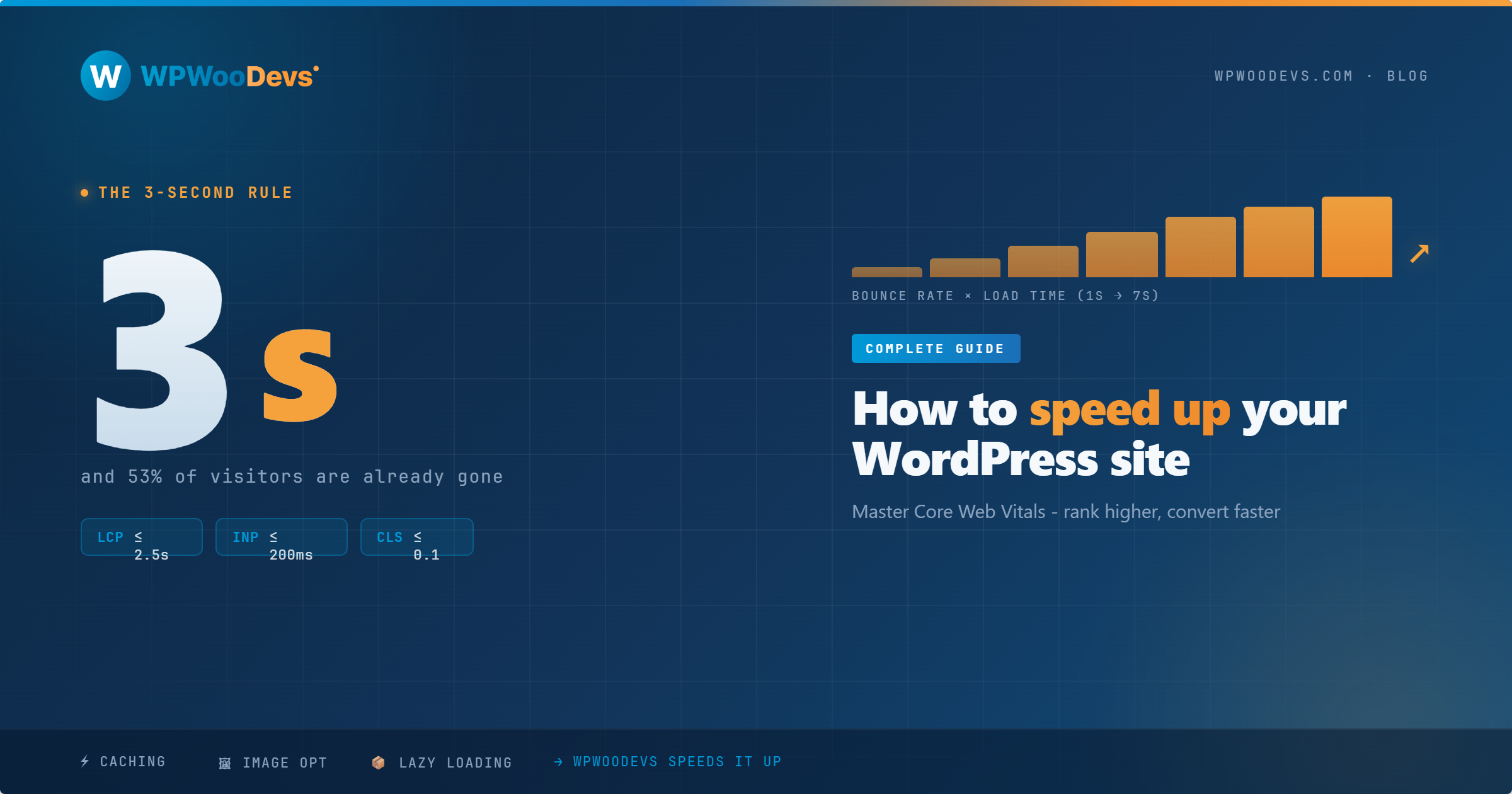
If your WordPress site takes more than three seconds to load, you are probably losing visitors before they ever read your first sentence. Studies have shown that more than half of web users will abandon a page if it hasn't loaded within that window — and with Google's Core Web Vitals now a confirmed ranking factor, slow sites don't just frustrate people. They quietly sink in search results, week after week.
The good news is that fixing this doesn't require you to become a performance engineer overnight. In this guide, we'll walk through exactly what Core Web Vitals are, why they matter for your rankings and conversions, and the practical steps you can take right now to make your WordPress site noticeably faster.
What Are Core Web Vitals and Why Should You Care?
Google introduced Core Web Vitals as a set of real-world performance signals that measure how users actually experience your website — not just whether your server responded quickly, but whether the page felt fast and stable to the person loading it.
There are three key metrics in 2026:
Largest Contentful Paint (LCP) measures how long it takes for the biggest visible element on the page — usually a hero image or headline — to load. Google's target is under 2.5 seconds. Anything above 4 seconds is considered poor.
Interaction to Next Paint (INP) replaced the old First Input Delay metric in 2024 and measures how responsive your site is to user actions like clicks and taps. You want this under 200 milliseconds.
Cumulative Layout Shift (CLS) tracks whether elements on your page move around as it loads — you know that annoying experience where you're about to click something and it suddenly jumps? That's a high CLS score. Aim for under 0.1.
These aren't abstract numbers. A poor LCP means your visitors are staring at a blank or partially loaded screen. A high CLS score means they're accidentally clicking the wrong thing. Together, these experiences erode trust and increase bounce rate — two things that damage your business regardless of your niche.
Step 1: Start With the Right Hosting
This is the uncomfortable truth most WordPress guides skip past: no amount of plugin tweaking can fully compensate for bad hosting.
Shared hosting plans — particularly cheap ones where your site shares server resources with hundreds or thousands of others — create a performance ceiling you simply can't optimize your way through. When your neighbor's site gets a traffic spike, your site slows down. It's that simple.
For serious WordPress performance in 2026, consider managed WordPress hosting providers like Kinsta, WP Engine, Cloudways, or Rocket.net. These platforms are purpose-built for WordPress, come with server-level caching, PHP 8.x support, and data centers in multiple regions including the US, UK, and Australia — which matters enormously if you're targeting audiences across those markets.
If upgrading your hosting is on the horizon, prioritize:
PHP 8.2 or higher support
Built-in object caching (Redis or Memcached)
A content delivery network (CDN) included or easily integrated
Servers located close to your primary audience
Step 2: Choose a Lightweight, Performance-First Theme
Your WordPress theme is doing far more work than most people realize. Every time a page loads, your theme is executing CSS, loading fonts, running JavaScript, and making database queries. A bloated theme multiplies all of those operations.
Themes like Astra, GeneratePress, Blocksy, and Kadence are consistently lightweight and well-coded. They load in under half a second on a good host without any additional optimization. Page builder-heavy themes, on the other hand — especially older premium themes packed with sliders, parallax effects, and dozens of bundled plugins — are often the single biggest drag on WordPress performance.
If you love your current theme and don't want to switch, the next best step is to make sure you're not loading theme features you don't use. Many themes let you disable specific modules. Turn off anything unnecessary.
Step 3: Optimize Every Image on Your Site
Images are typically the largest files on any web page, and they're responsible for the majority of poor LCP scores. In 2026, there is really no excuse for not serving images in modern formats.
Switch to WebP. WebP images are around 25–35% smaller than equivalent JPEGs and PNGs with no visible quality loss. Plugins like Imagify, ShortPixel, or Smush can automatically convert your existing image library to WebP and serve them to browsers that support it (which is essentially all of them now).
Set explicit width and height attributes. When browsers know the dimensions of an image before it loads, they can reserve the right amount of space, which dramatically reduces CLS. Most modern themes and page builders handle this, but it's worth checking older content.
Implement lazy loading. Images that appear below the fold don't need to load until a user scrolls towards them. WordPress has had native lazy loading since version 5.5, but confirm it's active on your images with a quick browser inspection.
Use a CDN for image delivery. A CDN distributes your images across servers around the world, so a visitor in Melbourne or Manchester gets them from a nearby server rather than yours in Chicago. Cloudflare's free plan covers basic CDN functionality, while Bunny.net and KeyCDN offer affordable options with more control.
Step 4: Implement Caching Correctly
Caching is the practice of storing a pre-built version of your page so that WordPress doesn't have to reconstruct it from scratch every time someone visits. It's one of the highest-impact performance improvements you can make, and it's free to set up.
Page caching plugins like WP Rocket, LiteSpeed Cache (if your host supports it), or W3 Total Cache generate static HTML versions of your pages. A cached page can load in milliseconds compared to the hundreds of milliseconds a dynamically generated WordPress page takes.
WP Rocket is the most beginner-friendly option and handles most configuration automatically. LiteSpeed Cache is incredibly powerful if your host runs LiteSpeed servers — many managed WordPress hosts do.
Browser caching tells returning visitors' browsers to hold onto certain static files (CSS, JavaScript, images) locally rather than re-downloading them on every visit. This is usually handled through your caching plugin or your server configuration.
Object caching is a server-side technique that stores the results of database queries in memory (using Redis or Memcached) so WordPress doesn't have to run the same queries repeatedly. This is particularly useful for WooCommerce stores with complex database operations.
Step 5: Minimize and Defer JavaScript and CSS
Render-blocking JavaScript and CSS are among the most common reasons for poor LCP scores. When a browser encounters a JavaScript file it needs to download and execute before rendering the page, your visitors see nothing while they wait.
Here's what to do:
Defer non-critical JavaScript. JavaScript that doesn't need to run immediately — analytics scripts, chat widgets, social media buttons — should be loaded after the main page content. Your caching plugin likely has a defer option; use it.
Remove unused CSS. Most WordPress themes load their entire stylesheet on every page, even if a given page only uses 10% of those styles. Tools like Asset CleanUp or WP Rocket's file optimization features can help you unload scripts and styles on a per-page basis.
Preconnect to external resources. If your site loads fonts from Google Fonts or scripts from third-party services, adding a preconnect hint in your <head> tells the browser to establish the connection early, saving time when the resource is actually needed.
Step 6: Clean Up Your Database Regularly
Over time, your WordPress database accumulates a lot of unnecessary weight: post revisions, spam comments, transient options, orphaned metadata, and trashed items. None of it serves your visitors, but all of it slows down your database queries.
Plugins like WP-Optimize or Advanced Database Cleaner can automate this process, scheduling weekly or monthly clean-ups that keep your database lean. Just make sure you take a backup before running any database optimization — it's a rare but real possibility that something goes wrong.
Step 7: Measure, Monitor, and Iterate
Performance optimization isn't a one-time project. New plugins get added, content grows, and your scores change. Build a habit of checking in monthly.
Google Search Console now shows Core Web Vitals data for your actual pages, broken down into good, needs improvement, and poor categories. This is field data from real users — more valuable than any lab test.
PageSpeed Insights (pagespeed.web.dev) gives you both lab scores and field data, along with specific recommendations for your URL.
GTmetrix and WebPageTest provide waterfall charts that help you visualize exactly which resources are slowing things down.
Set a reminder to check these tools once a month. When a score drops, you'll usually be able to trace it back to a recent change — a new plugin, a large image, an added script.
A Note on WooCommerce Performance
If you're running a WooCommerce store, performance optimization takes on additional importance. Product pages with multiple images, dynamic pricing, and cart functionality create more database load than standard content pages. On top of the steps above, consider:
Disabling cart fragments on pages where they aren't needed (this is a common performance culprit)
Using a WooCommerce-optimized hosting plan
Implementing product image compression aggressively
Considering a separate CDN for product assets if your catalog is large
Final Thoughts
Speed optimization can feel overwhelming when you look at all the moving parts, but the reality is that most WordPress sites see significant improvement just by addressing hosting, images, and caching. Start with those three. Use the tools mentioned above to measure before and after. Then work through the remaining steps at a pace that makes sense for your situation.
A faster site isn't just better for Google — it's a better experience for every single person who visits you. In competitive markets like the US, UK, and Australia, that difference is often what separates a site that converts from one that doesn't.
Need expert help optimizing your WordPress site? The team at WpWooDevs specializes in WordPress performance, from server configuration to full site audits. Get in touch and let's look at what's holding your site back.